
Send Your First Photo
Once setup is complete, you are ready to place the first photo on
InkJoy Frame.
Basic steps
- Open the album section in the
APP. It is the third button from the left in the bottom navigation bar. - Choose one photo and check the preview in the editing area.
- Drag the preview position if needed.
- Tap the arrow in the lower-right corner to send the photo.
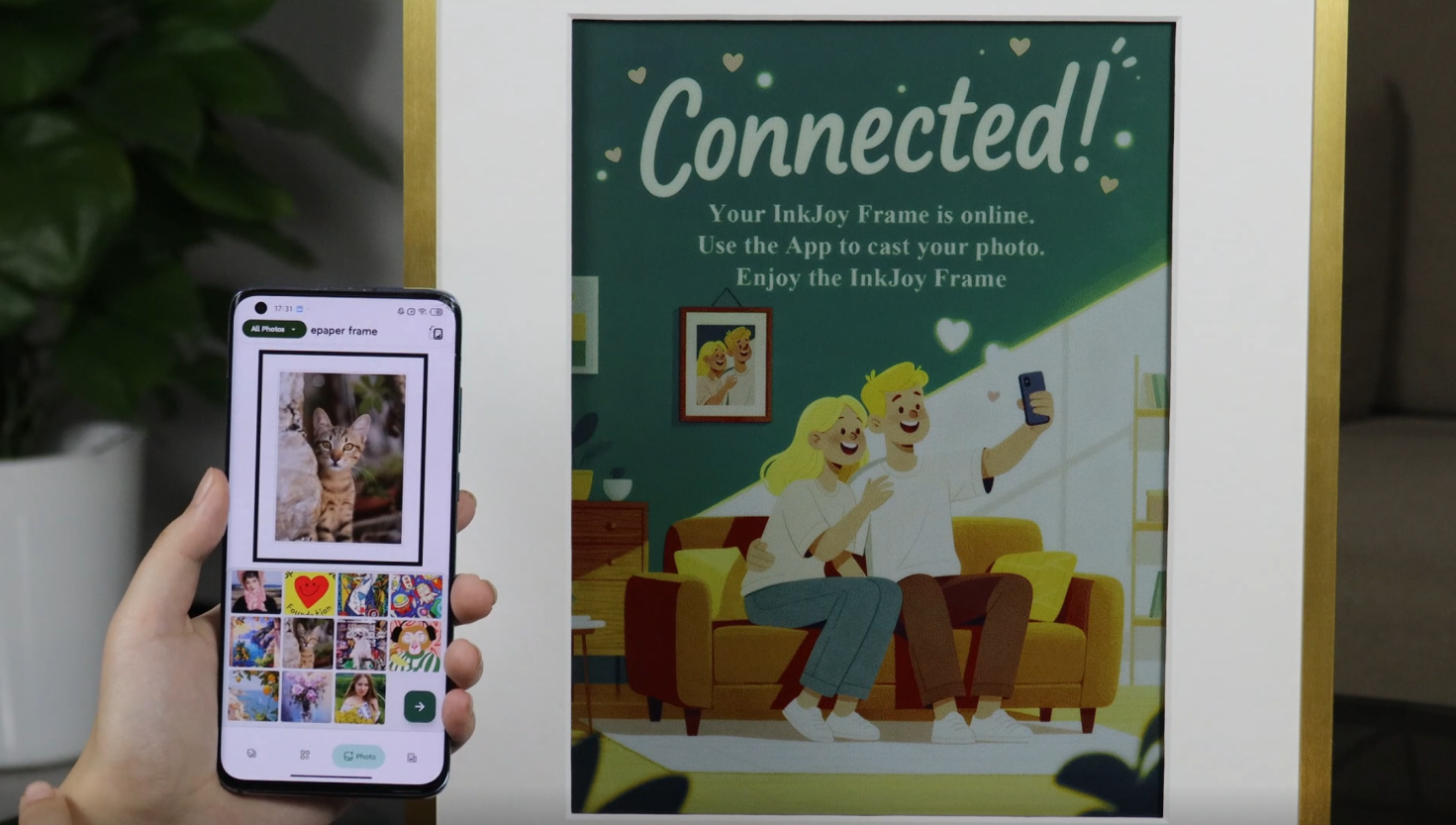
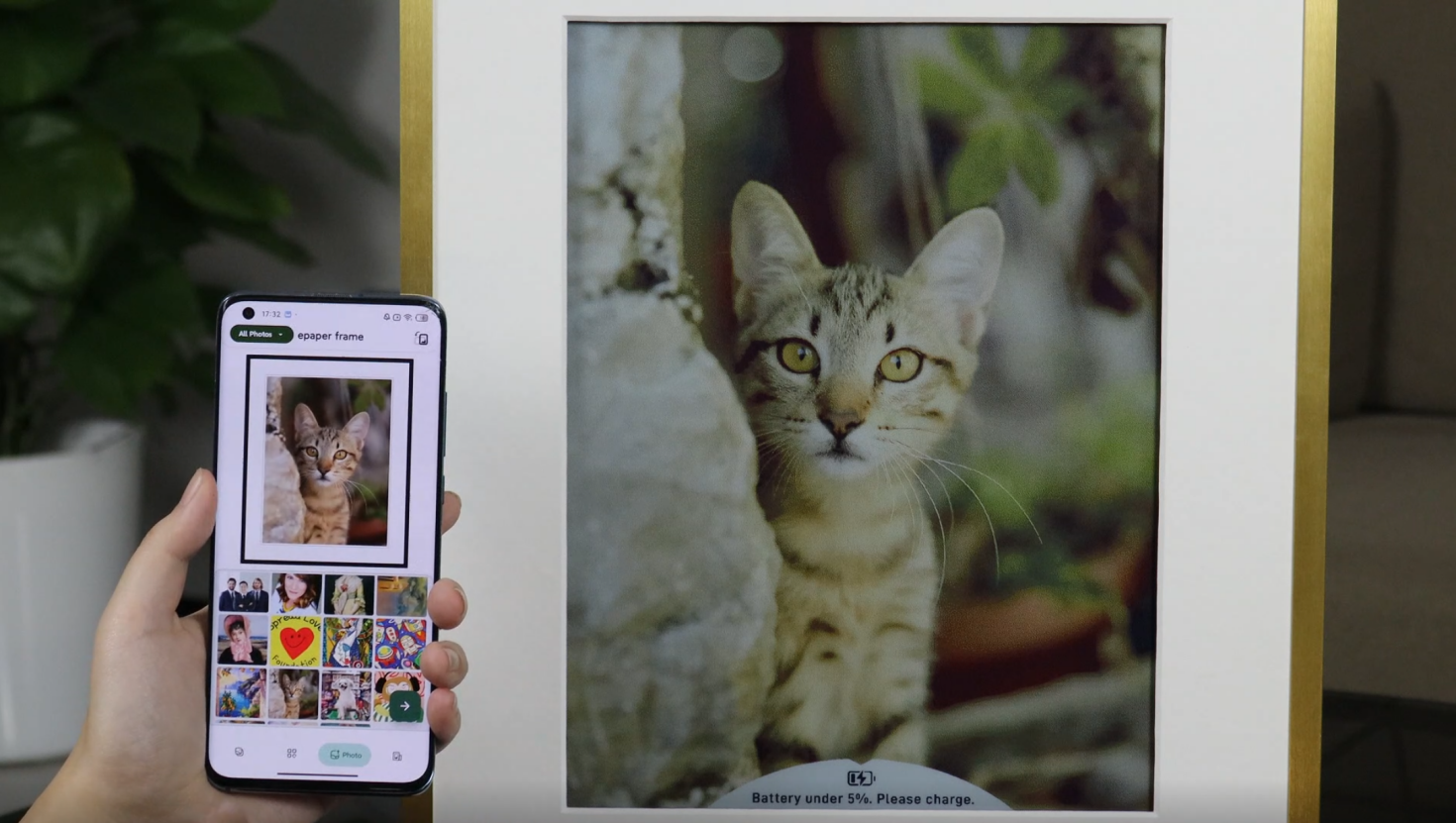
What success looks like
After the photo is sent successfully, the frame refreshes and shows the image you just selected.
Detailed guide: Send from Phone Gallery
If the photo does not send
If the photo does not reach the frame, check these items first:
- On the
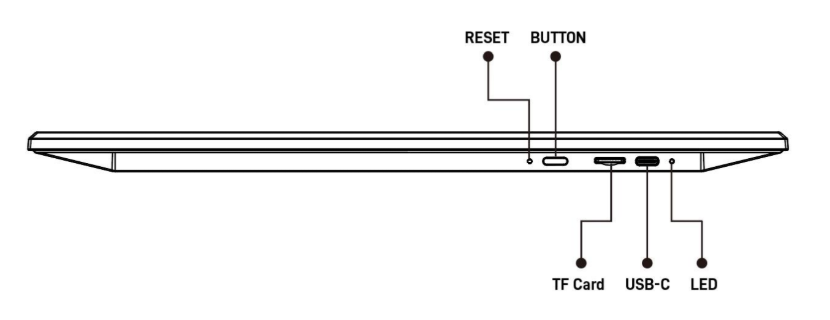
Devicespage, confirm that the frame is connected to theWi-Finetwork you expect to use. - Press the button on the back of the frame once and check whether the indicator light is green; it will turn off automatically after a short time.
Devices page status | Indicator light | Recommended action |
|---|---|---|
Not connected, or shows X | Blue / yellow | Run Network Setup and Binding again |
| Connected | Blue / yellow | Check whether the current Wi-Fi is stable; if needed, try another Wi-Fi network |
| Connected | Green | Restart the frame and try again |
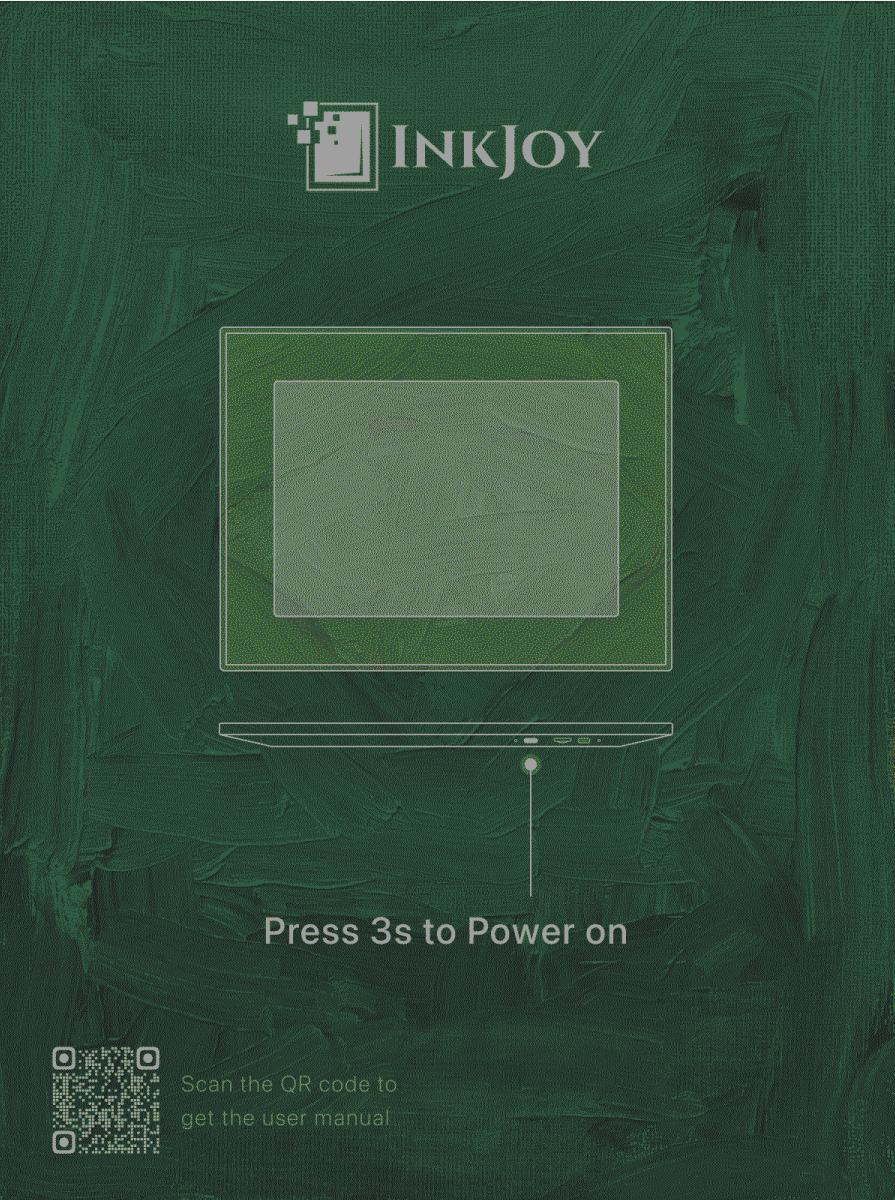
Press RESET once with a pin, wait for the initial screen, then power on and run setup again.
If the problem continues, see: