
Offline Mode (TF Card)
TIP
Offline mode is currently in closed beta. Email [email protected] to apply. Include your registered email address or your InkJoy Frame MAC address in the message.
You can use InkJoy Offline Tool on your computer to build encrypted TF card playlists—the frame does not need a network connection during playback.
To protect your personal images, offline mode encrypts every playback file—only your InkJoy Frame can decrypt and display it. To enable this, InkJoy Frame must complete a one-time activation first; during activation, your frame generates its own key pair.
Before you start
- Connect
InkJoy Frameto the network and complete activation. See Network Setup and Binding. - Wait for automatic OTA to a firmware version later than 0.6.0 (check the frame version in the mobile
APP). OTA for this firmware is currently available through the closed beta only. - Download your frame's license file (
.lic):- Open the InkJoy Web tool and sign in.
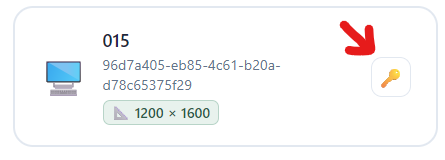
- On your frame's device card, click the 🔑 icon on the right to download the license file.
Create the TF card playlist
- Download InkJoy Offline Tool v1.0.3. The beta build currently supports Windows only.
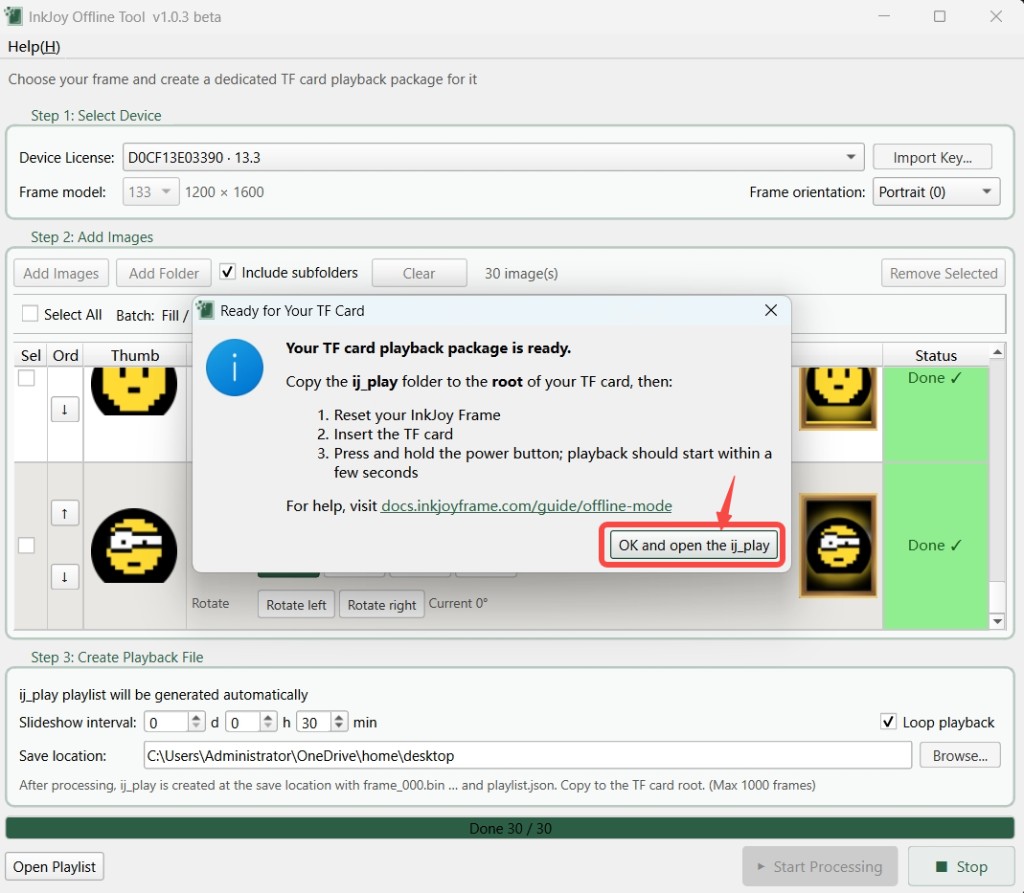
- Follow the on-screen prompts, import the license file, and build the TF card package—the
ij_playfolder. - Copy the
ij_playfolder to the root directory of the TF card.
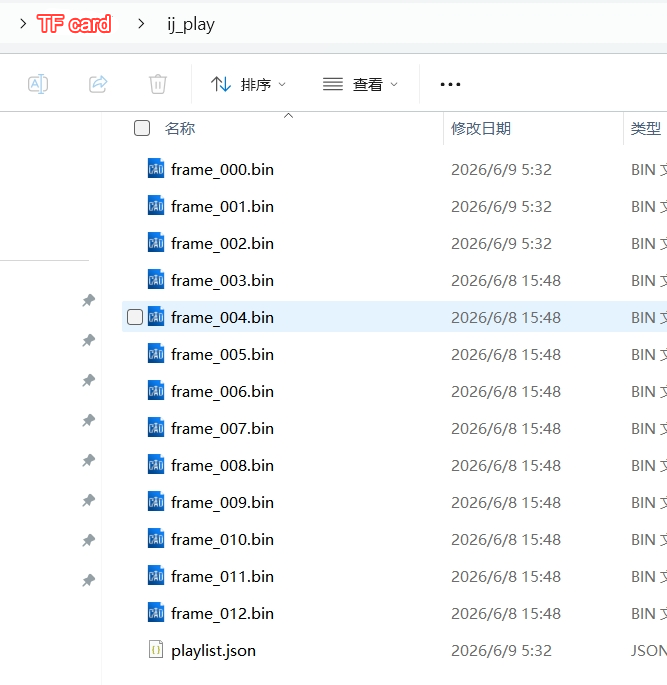
When generation finishes, the tool shows a confirmation dialog—click OK and open the ij_play folder to open the output directory. After copying to the TF card root, the ij_play folder should contain files such as frame_*.bin and playlist.json, for example:
Play from the TF card
- Reset
InkJoy Frameto factory settings. - Insert the TF card.
- Press and hold the power button to turn on; playback should begin within a few seconds.
TIP
Offline mode security
- During online activation, InkJoy Frame generates a dedicated key pair and uploads the public key to the server. The desktop offline tool never needs a network connection—it can only encrypt with the public key; the sole decryption key is stored securely inside InkJoy Frame.
- After activation is complete, you should reset InkJoy Frame to disconnect it from the network.