Network Setup and Binding
This page focuses on one thing: getting
InkJoy Frameonline and bound in theAPP.Once that is done, you are ready to send your first photo.
Enter network setup mode
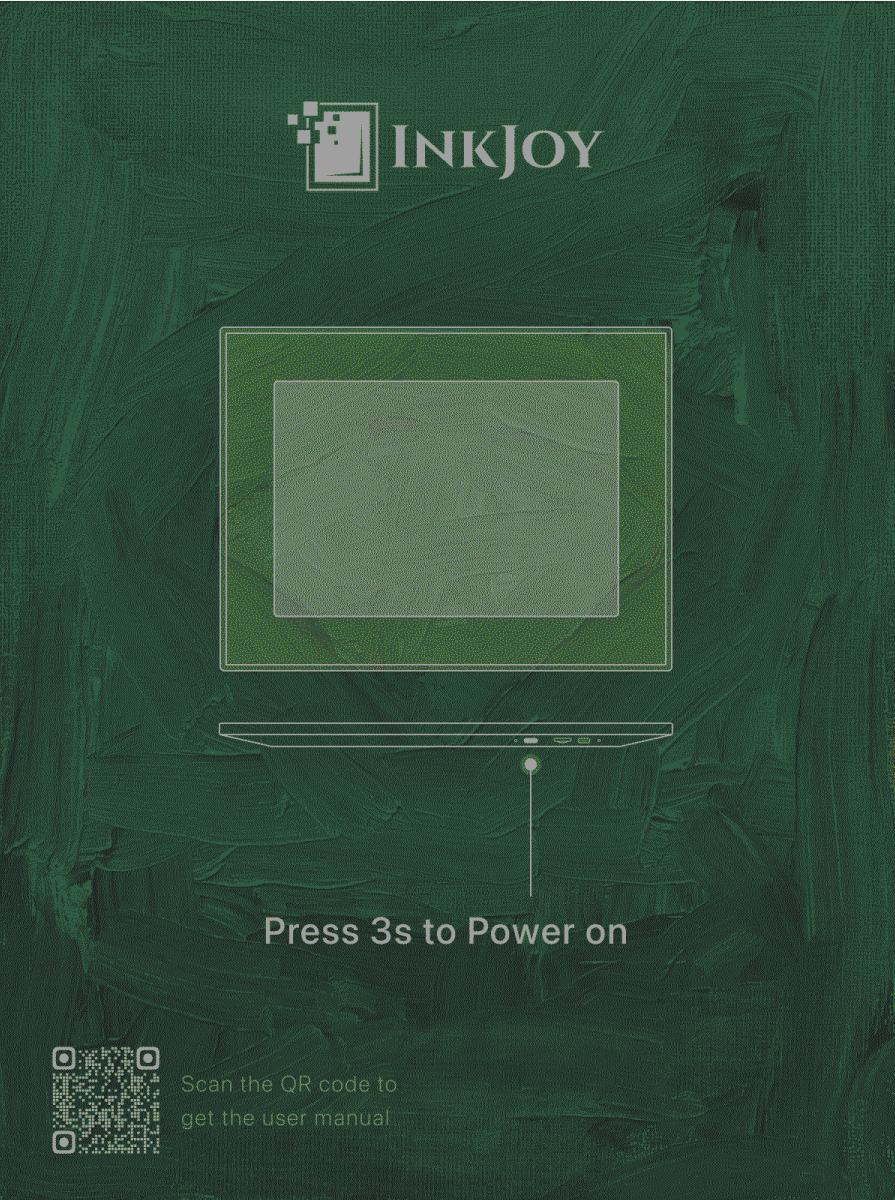
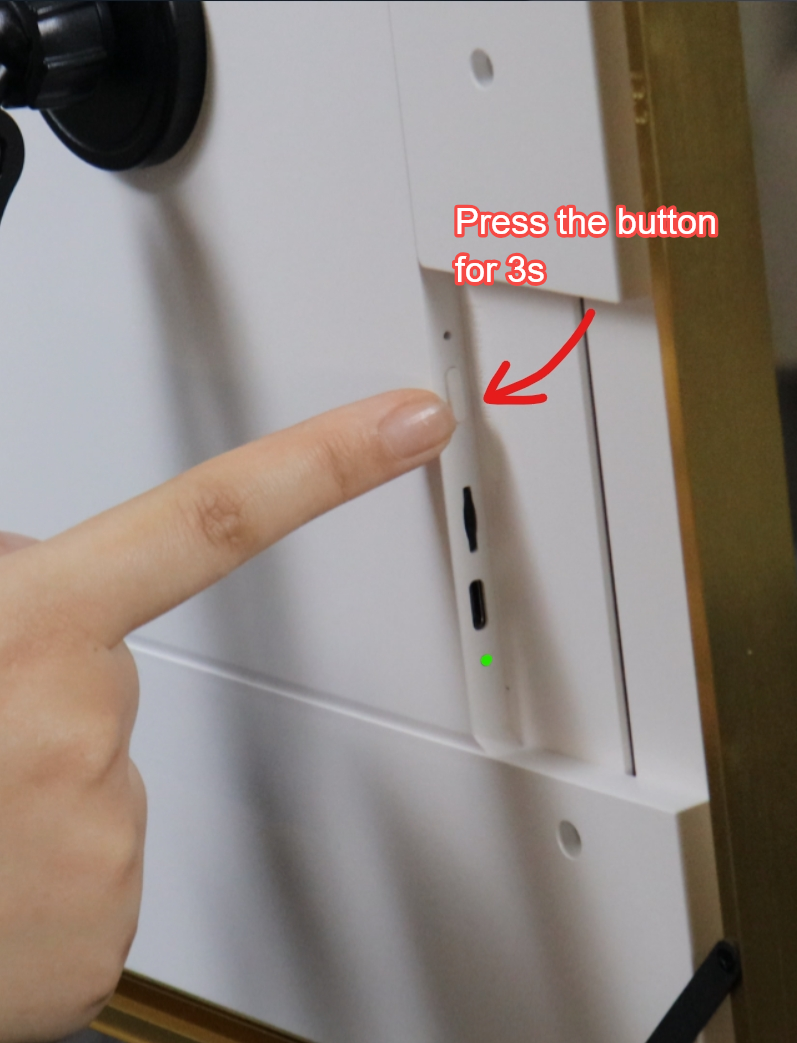
- Press and hold the power button on the back side of
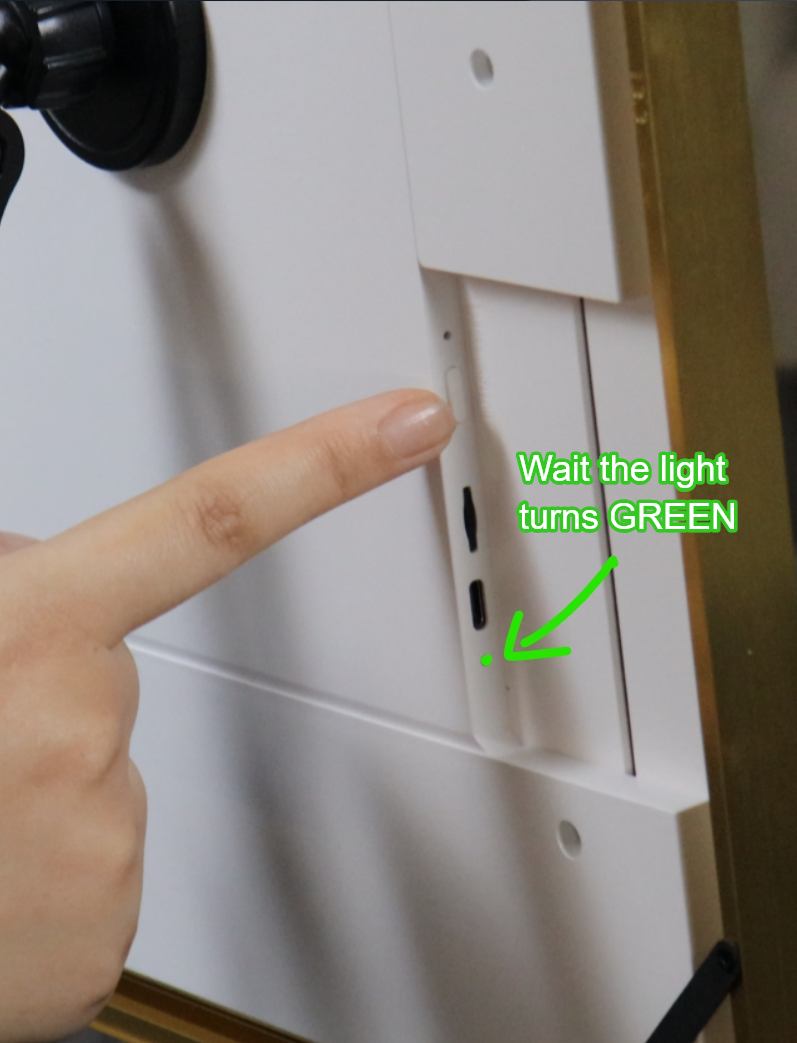
InkJoy Framefor about 3 seconds. - The green light turns on, the screen flashes, and the setup screen appears.
- When the blue light blinks every 3 seconds,
InkJoy Frameis in setup mode.
Make sure
InkJoy Frameis on the setup screen shown in the third image above before continuing with the steps below.
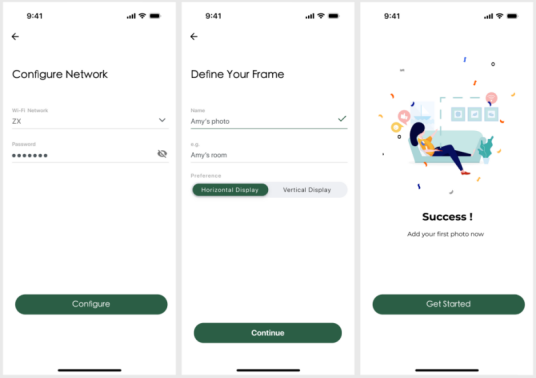
Complete setup and binding in the APP
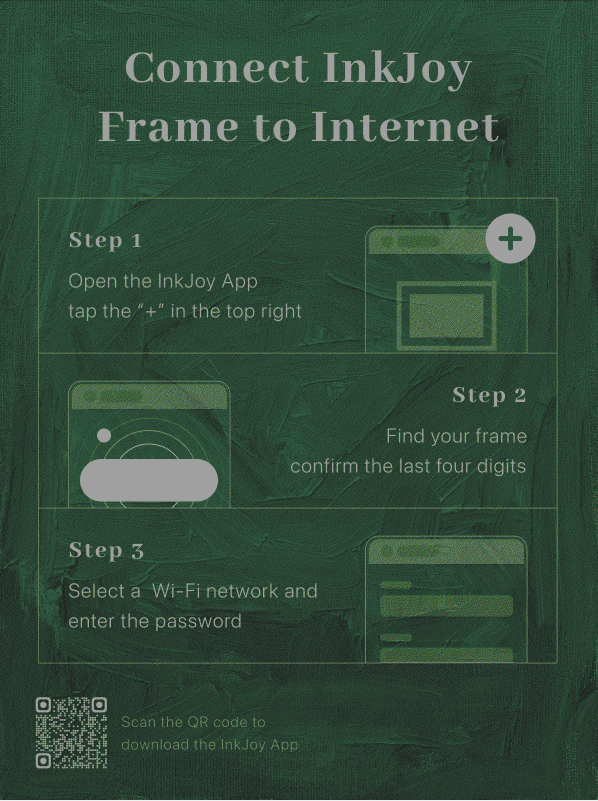
- Turn on Bluetooth on your phone, then tap the
+icon in the top-right corner of theAPPhome page. - Move close to the frame and wait for the
APPto scan it. Confirm the four-digit number shown on the frame. - Enter an available
Wi-Finame and password. You can use the refresh button to scan nearby networks; because of system permission limits, iOS cannot scan nearbyWi-Fi, so you need to enter it manually. - After setup succeeds, give the frame a name and set portrait or landscape orientation (you can change this later).
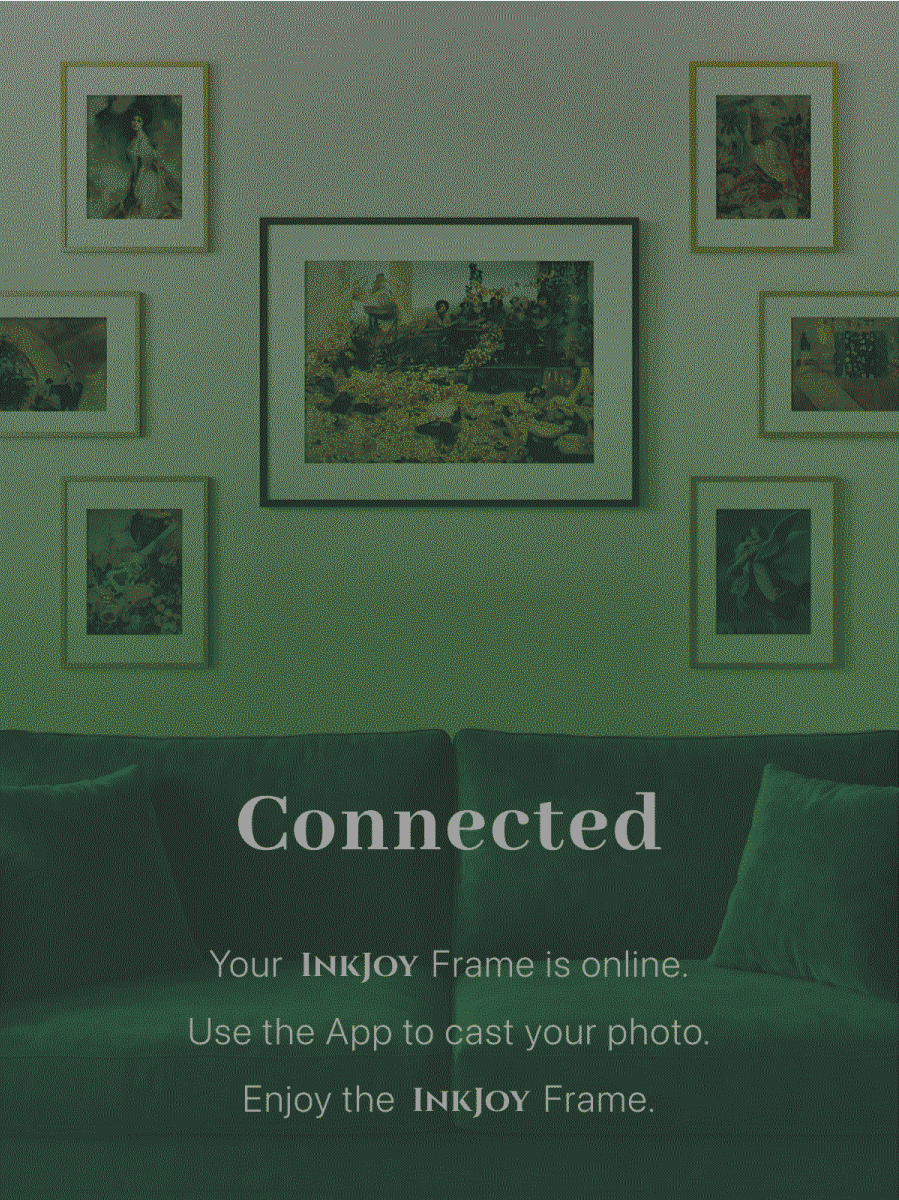
- After setup succeeds, the frame will indicate that the connection succeeded.
If you do not want to continue setup for now
WARNING
Press the RESET hole once with a pin (next to the power button). 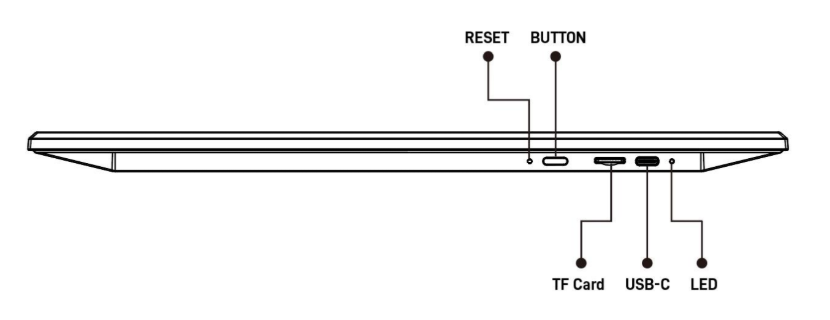
If you power off by long-pressing the power button during setup, note that the e-ink screen may not change visibly, which can make the following steps confusing.
To confirm whether the frame is off or already back in setup mode, use Indicator Lights together with the screen.
What success looks like
After setup succeeds, the frame is ready to receive photos.
Continue with: Send Your First Photo
Change the network
If you have already finished setup and the frame is working normally, you can double-click the button to enter network setup mode while the frame stays powered on. You can also double-click the button to exit network setup mode while you are in setup mode.
If setup does not work
If setup fails, you may see a screen like this:
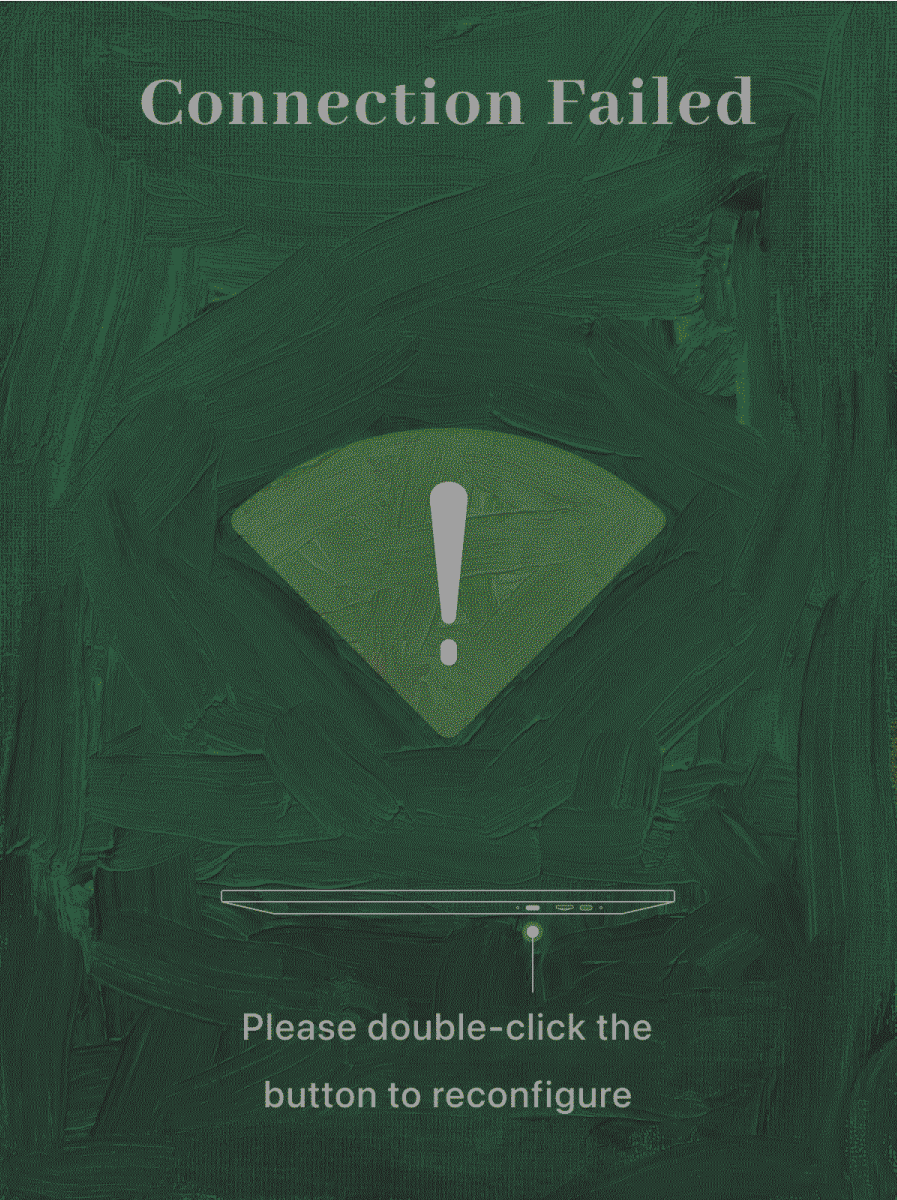
Follow the prompt and double-click the button to return the frame to the setup screen. Then retry the setup flow in the mobile APP.
If double-clicking does not help: press RESET once with a pin, wait for the initial screen, then power on and run setup again.